
Oct. 1, 2026
How to Convert Images to PDF: A Complete Guide
Learn how to convert images to PDF online. Convert JPG, PNG, WebP and HEIC images into a single PDF quickly and easily.
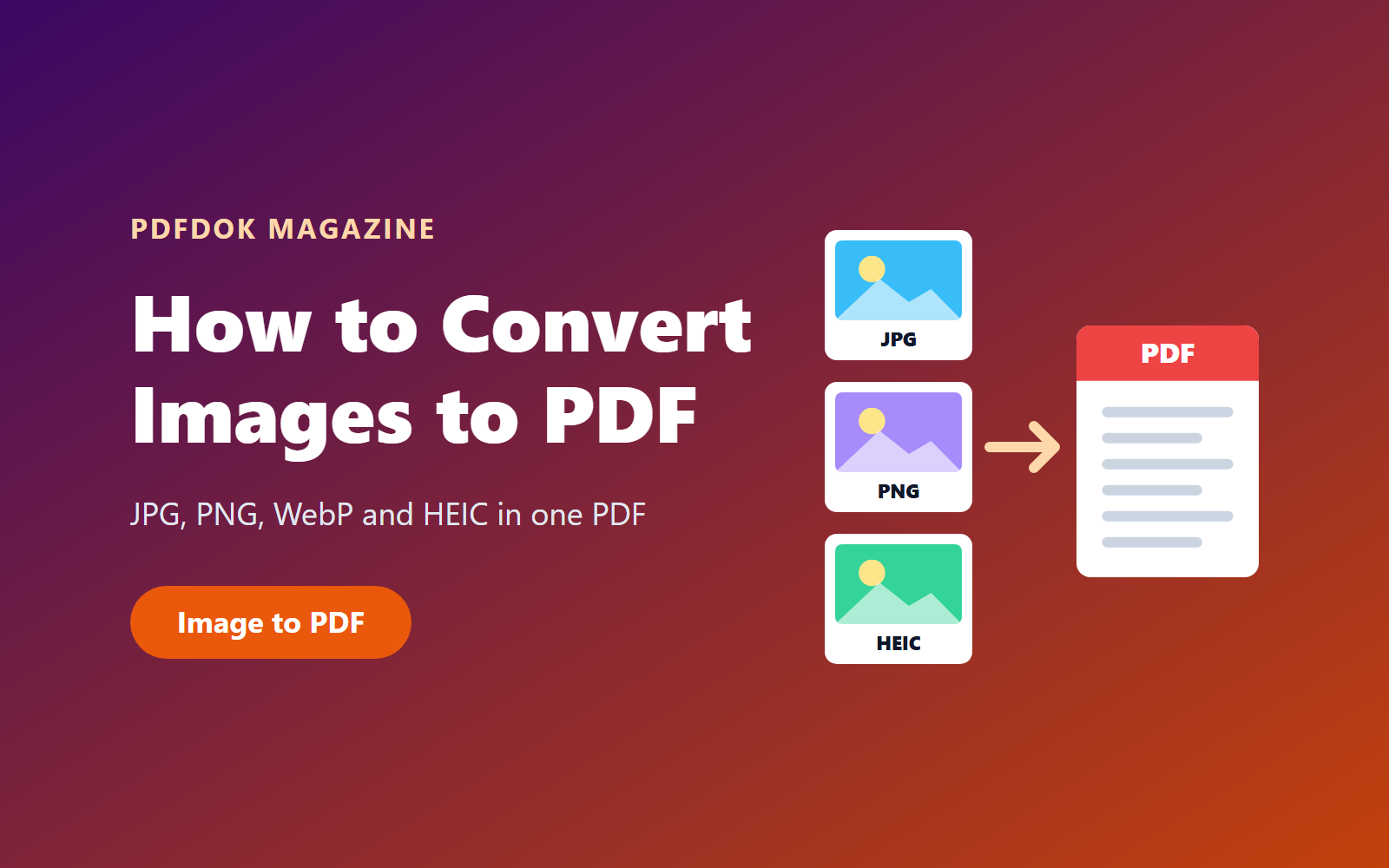
How to Convert Images to PDF: A Complete Guide for JPG, PNG, WebP and HEIC
Converting images to PDF is useful when you need to share photos, scans, screenshots, graphics, or several images as a single document. Instead of sending multiple image files separately, you can combine them into one organized PDF that is easier to share, print, archive, or upload.
In this guide, you'll learn how to convert images to PDF online, including JPG, PNG, WebP, HEIC, and other popular image formats.
With PDFDOK, you can convert images directly in your browser without installing software. You can upload multiple images, arrange them in the order you want, and create a PDF in just a few seconds.
Why Convert Images to PDF?
Images are convenient for viewing and sharing, but they are not always the best format for documents.
Converting images to PDF can be useful when you want to:
Combine several photos or scans into one document
Share multiple images as a single file
Prepare documents for printing
Archive scanned documents
Organize receipts, invoices, or certificates
Create a document from screenshots or photos
Submit images through a platform that requires PDF files
A PDF also provides a convenient way to keep several pages together while preserving their order.
Which Image Formats Can You Convert to PDF?
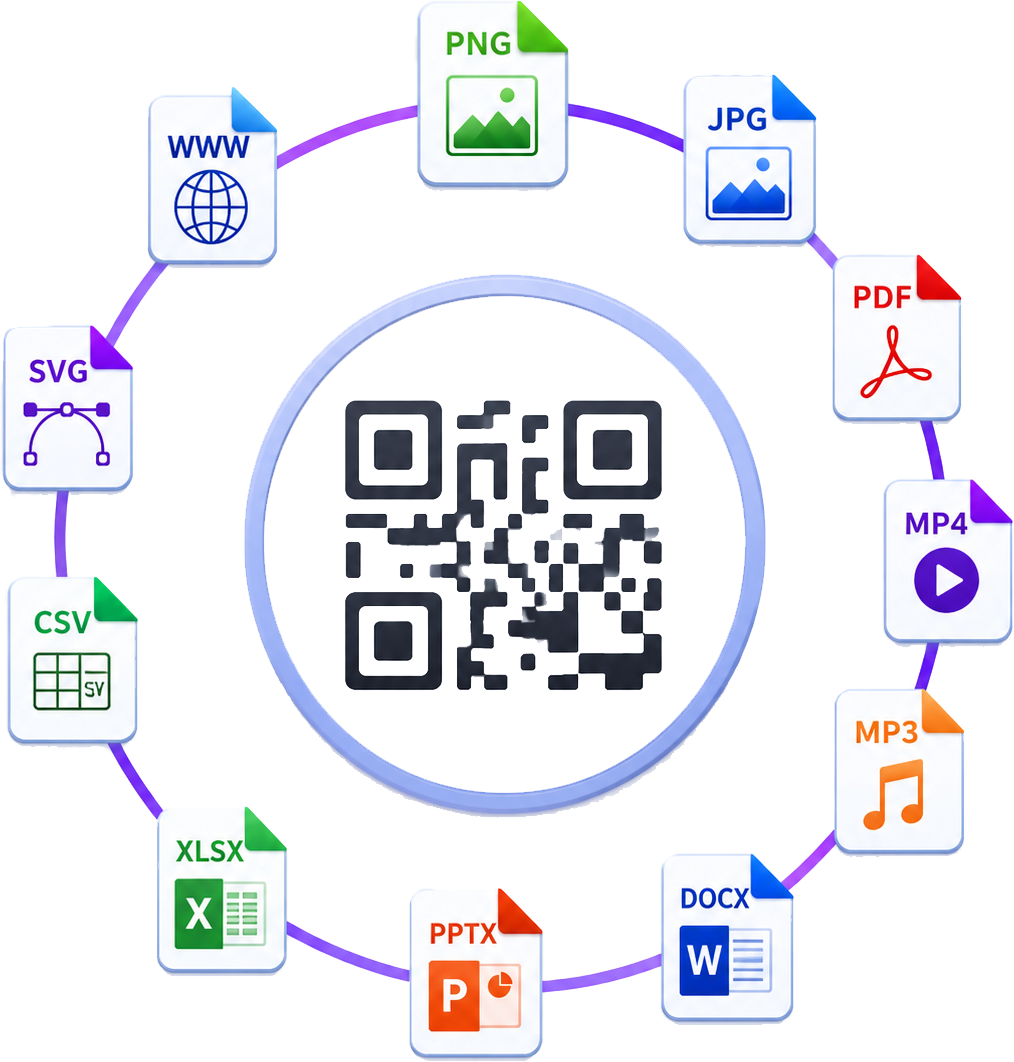
Different image formats are designed for different purposes. PDFDOK supports several common image formats, making it possible to create a PDF from a variety of image files.
JPG to PDF
JPG is one of the most common formats for photographs and digital images. Converting JPG images to PDF is useful when you want to combine multiple photos into a single document.
For example, you could turn several photos of receipts, documents, or product images into one PDF file.
PNG to PDF
PNG is commonly used for screenshots, graphics, logos, and images where transparency or lossless quality is important.
Converting PNG images to PDF can make them easier to share, print, or combine with other documents.
WebP to PDF
WebP is widely used for images on websites because it can provide efficient compression while maintaining good image quality.
If you have WebP files that need to be submitted, printed, or shared as a document, converting them to PDF can make them easier to work with.
HEIC to PDF
HEIC is commonly used by Apple devices for photos. If you have photos stored in HEIC format and need them in a more widely supported document format, you can use the HEIC to PDF converter.
This can be particularly useful when preparing photos or scans for sharing, printing, or document submission.
SVG to PDF
SVG files are vector graphics commonly used for logos, illustrations, icons, and other scalable artwork.
If you need to turn an SVG graphic into a document format, you can use the SVG to PDF tool.
How to Convert Images to PDF Online
One of the easiest ways to convert images to PDF is to use an online converter.
With PDFDOK, the process is straightforward:
1. Select your images
Choose the JPG, PNG, WebP, or other supported image files you want to convert.
2. Upload your images
Open the Image to PDF converterand upload your files.
PDFDOK supports multiple images in a single conversion. The current tool allows up to 20 files, with a maximum file size of 50 MB per file.
3. Arrange the images
If you are creating a PDF from several images, arrange them in the order you want them to appear.
This is especially useful when converting scanned pages, receipts, forms, or photographs into a multi-page document.
4. Create your PDF
Start the conversion and PDFDOK will create your document from the selected images.
5. Download your PDF
Once the conversion is complete, download the resulting PDF and use it for sharing, printing, archiving, or uploading.
The entire process takes place online, so there is no need to install desktop software.
How to Convert Multiple Images into One PDF
If you have several images that belong to the same document, converting them individually can be inconvenient.
Instead, you can combine them into one PDF file.
For example, you might have:
10 scanned pages
Several photos of receipts
Multiple screenshots
Pages of a paper document
Product images
Photos of a contract or certificate
With PDFDOK, you can upload multiple images and arrange them in the desired order before creating the PDF.
This makes it easier to create a single, organized document rather than managing multiple image files.
How to Convert JPG to PDF
JPG is one of the most widely used image formats, so JPG to PDF conversion is a common requirement.
To convert JPG images to PDF:
Open the Image to PDF converter.
Upload your JPG files.
Arrange the images in the correct order.
Start the conversion.
Download the resulting PDF.
This is particularly useful for turning photographs or scanned JPG pages into a document that can be printed or shared as a single file.
How to Convert PNG to PDF
The process is similar for PNG files.
PNG images are often used for screenshots, graphics, diagrams, and documents that require lossless image quality.
Upload your PNG files to the Image to PDFtool, arrange them as needed, and create your PDF.
How to Convert Photos from an iPhone to PDF
If your photos are stored on an iPhone, they may use the HEIC format.
HEIC can be efficient for storing photographs, but you may sometimes need to convert these files into PDF for compatibility with a document workflow.
In that situation, the HEIC to PDF converter can be used to turn HEIC or HEIF photos into PDF documents.
This can be useful for applications, paperwork, business documents, printing, and sharing.
What Can You Do After Converting Images to PDF?
Creating the PDF is often only the first step.
Depending on what you need to do with the document, you may want to perform additional operations.
Reduce the PDF file size
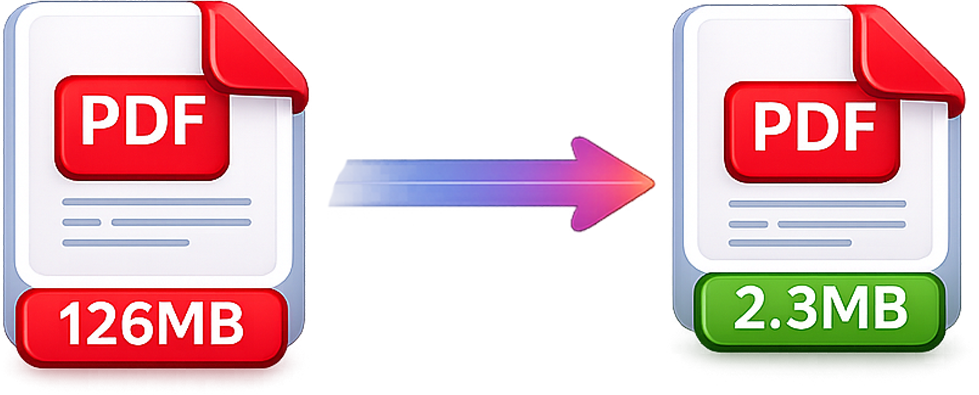
Image-based PDFs can sometimes become large, especially when they contain high-resolution photographs.
If the resulting document is too large to email or upload, you can use PDFDOK's Compress PDF tool to reduce its file size.
Combine PDF files
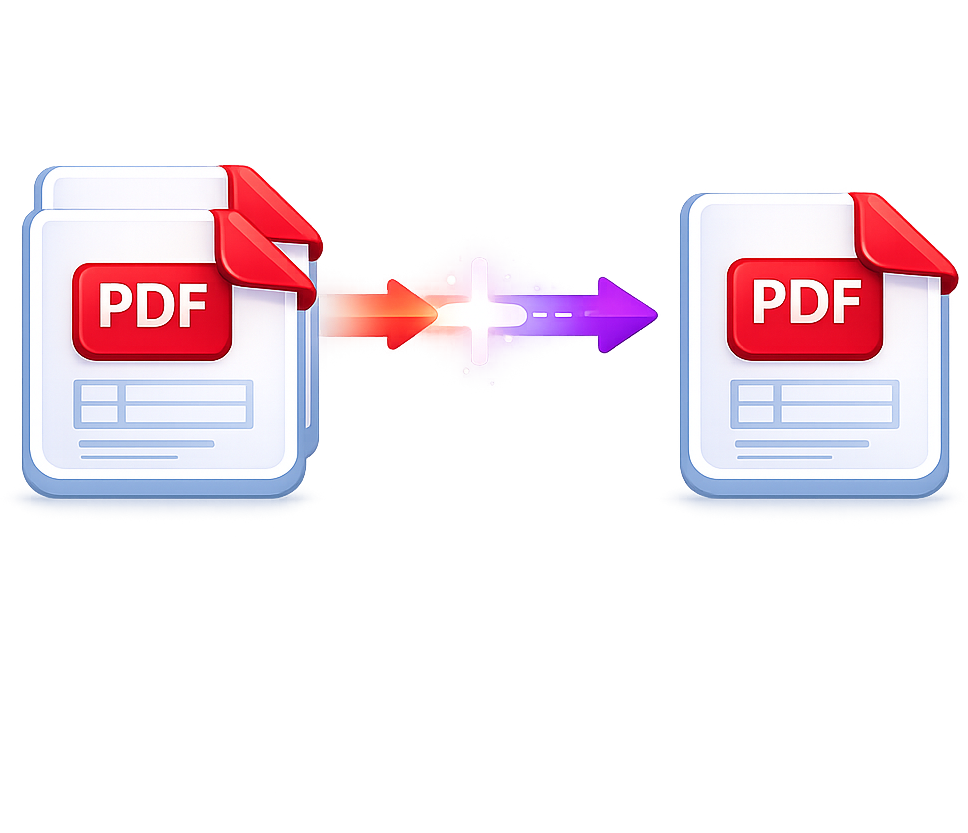
If your images have already been converted into separate PDF files, you can combine them into one document using the Merge PDF tool.
This is useful when different groups of images have been converted into separate documents and you want to create one final PDF.
Convert PDF pages back to images
Sometimes you need to reverse the process.
If you already have a PDF and need individual image files, PDFDOK can convert PDF to JPG or convert PDF to PNG.
This can be useful when you need to use individual PDF pages in presentations, websites, social media, or image-editing applications.
Image to PDF vs. PDF to Image
Although they sound similar, these two workflows have opposite purposes.
Image to PDF converts one or more image files into a PDF document.
For example:
JPG → PDF
PNG → PDF
HEIC → PDF
PDF to image converts PDF pages into image files.
For example:
PDF → JPG
PDF → PNG
The right tool depends on the format you currently have and the format you need at the end.
Does Converting an Image to PDF Reduce Quality?
The result depends on the original image, its resolution, and the conversion process.
If you start with a high-quality image, the resulting PDF can maintain good visual quality. However, extremely large images can also produce unnecessarily large PDF files.
For documents that need to be shared online, a good approach is to create the PDF first and then compress it if necessary.
PDFDOK provides different compression options designed to balance file size and output quality.
Can You Convert Images to PDF Without Installing Software?
Yes.
An online Image to PDF converter allows you to perform the conversion directly from a web browser. This means you can work from a desktop, laptop, tablet, or smartphone without installing a dedicated PDF application.
PDFDOK is designed for browser-based document workflows, allowing users to upload images, convert them, and download the resulting PDF online.
Is It Better to Send Images or a PDF?
It depends on the situation.
Sending individual images can make sense when the recipient needs the original image files.
A PDF is often more convenient when several images belong together or when the recipient needs a document that can be easily printed, archived, or uploaded.
For example, instead of sending ten separate scanned pages, you can convert them into a single ten-page PDF.
Frequently Asked Questions
Can I convert multiple images into one PDF?
Yes. PDFDOK's Image to PDF tool allows you to upload multiple supported images and arrange them in the desired order before creating the PDF. The current tool supports up to 20 files per conversion.
Can I convert JPG to PDF?
Yes. JPG is one of the supported image formats for the PDFDOK Image to PDF converter.
Can I convert PNG to PDF?
Yes. PNG images can be converted into PDF documents online using PDFDOK.
Can I convert HEIC photos to PDF?
Yes. PDFDOK provides a dedicated HEIC to PDF tool for converting HEIC and HEIF photos into PDF documents.
Can I convert WebP to PDF?
Yes. WebP is supported by the Image to PDF converter.
Do I need to install software?
No. PDFDOK's Image to PDF converter works online through your browser, so there is no desktop software installation required.
Can I convert a PDF back into an image?
Yes. If you need images instead of a PDF, you can use PDFDOK's PDF to JPGor PDF to PNG tools.
Convert Your Images to PDF Online
Whether you need to convert a single photograph or combine several scanned pages into one document, converting images to PDF can make your files easier to organize, share, print, and archive.
With PDFDOK, you can convert JPG, PNG, WebP and other image formats to PDF online, arrange multiple images in the order you want, and create your document in just a few steps.