Oct. 1, 2026
How to Convert PDF to Word: Turn a PDF into an Editable Document
Learn how to convert a PDF into an editable Word document online, plus tips for getting the best results with complex layouts and scans.
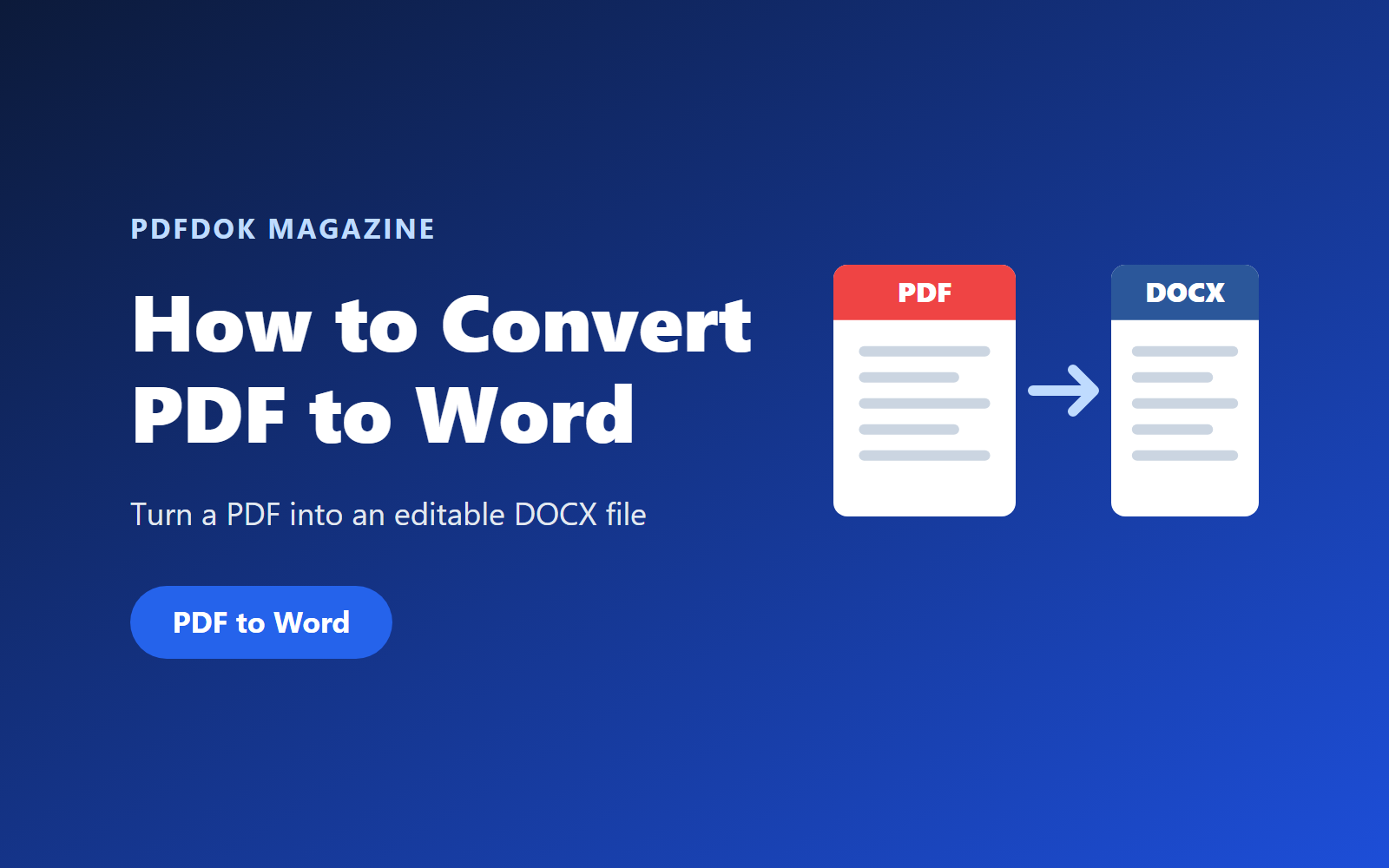
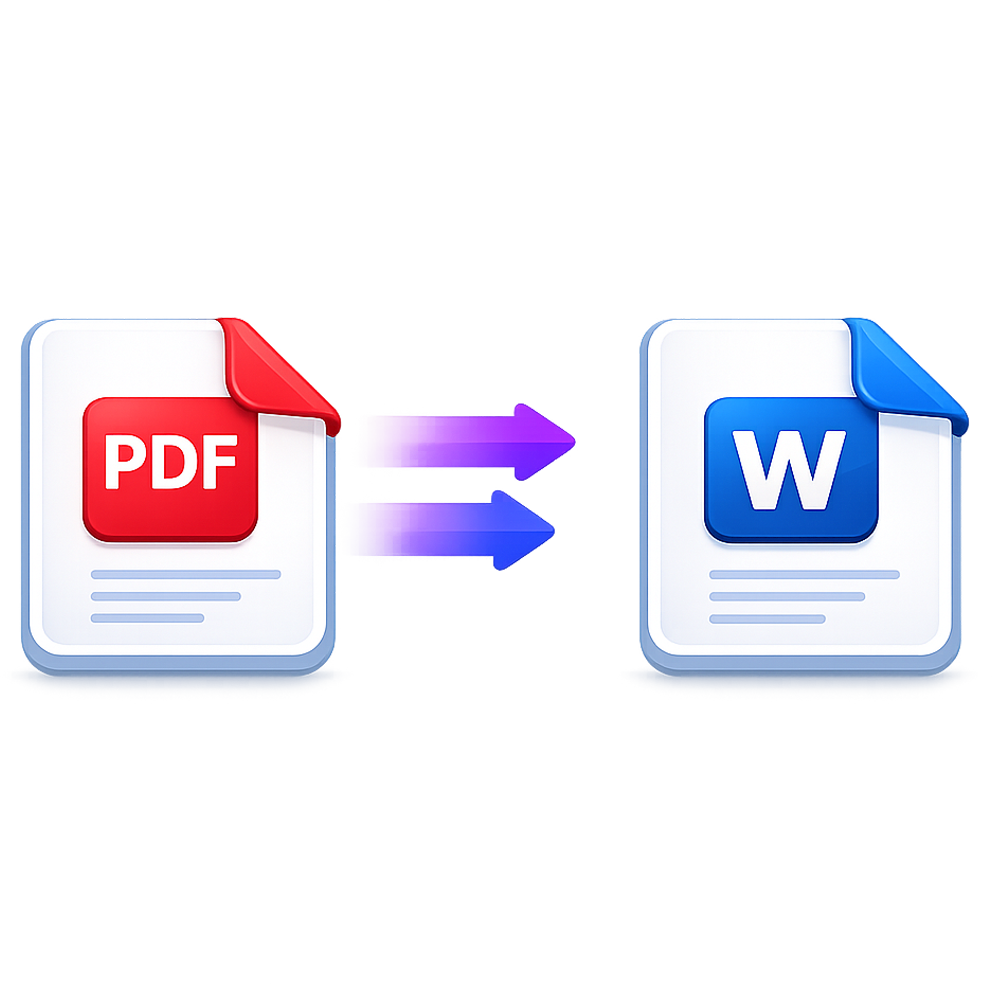
PDF is perfect for sharing documents that should look the same everywhere, but it isn't designed for editing. When you need to update a report, fix a typo in a letter or reuse text from a contract and the original Word file is missing, the solution is to convert the PDF to Word.
In this guide you'll learn how to convert a PDF into an editable DOCX file online, what affects conversion quality, and what to do with the document afterwards.
With PDFDOK's PDF to Word converter, you can do it directly in your browser.
Why Convert a PDF to Word?
- Edit text in a document when the original file is no longer available
- Update reports, letters, CVs or proposals
- Reuse paragraphs, lists and tables in a new document
- Add comments or tracked changes for collaborators
- Translate or rewrite content in a familiar editor
How to Convert PDF to Word Online with PDFDOK
1. Open the PDF to Word tool
Go to the PDFDOK PDF to Word page in any modern browser.
2. Upload your PDF
Select the PDF you want to edit. The converter accepts files up to 100 MB and up to 500 pages.
3. Convert the file
Start the conversion. PDFDOK rebuilds the text, paragraphs and tables as an editable Word document.
4. Download the DOCX
Download the result and open it in Microsoft Word, LibreOffice Writer, Google Docs or any editor that supports DOCX.
5. Review and edit
Check the layout, then make your changes. Complex pages may need a few small adjustments.
How to Get the Best Results
The quality of the Word file depends on how the PDF was created:
| Type of PDF | What to expect |
|---|---|
| Exported from Word or another editor | Best results: text, headings and lists convert cleanly |
| Complex layouts (columns, text boxes, many images) | Content converts, but spacing and positions may need adjusting |
| Scanned pages or photos of documents | Pages are images, so text may not be editable without OCR |
Tips:
- Use the original PDF, not a printed and re-scanned copy, whenever possible.
- Check fonts. If a font isn't installed on your computer, Word replaces it with a similar one.
- Review tables, especially ones with merged cells.
- Unlock protected PDFs first with Unlock PDF if you know the password.
PDF to Word vs. Editing the PDF Directly
You don't always need to convert. For small changes, such as filling a form, adding a signature or annotating pages, the online PDF Editor is faster. Convert to Word when you need to rewrite larger parts of the text or rework the layout.
Convert It Back to PDF After Editing
Once your edits are finished, turn the document back into a PDF for sharing with Word to PDF. If you need to combine it with other documents, use Merge PDF; if the final file is large, reduce it with Compress PDF.
Other PDF Conversions
- Spreadsheets and tables: PDF to Excel
- Presentations: PDF to PowerPoint
- Open formats: PDF to ODT
- Plain text: PDF to TXT
Frequently Asked Questions
How do I convert a PDF to Word for free?
Upload your file to PDFDOK's PDF to Word converter, start the conversion and download the DOCX file.
Will my formatting be preserved?
Text, paragraphs, lists and simple tables usually convert well. Complex layouts with columns or overlapping elements may need some manual adjustments.
Can I convert a scanned PDF to Word?
Scanned pages are images, so their text may not become editable without OCR (optical character recognition). For best results, use a PDF that contains real text.
What is the maximum file size?
You can convert a PDF of up to 100 MB and 500 pages.
Which programs can open the converted file?
The DOCX file opens in Microsoft Word, LibreOffice, Google Docs, Apple Pages and most modern word processors.
Convert Your PDF to Word Online
When you need to change a PDF, converting it to Word is the simplest way to get an editable document. Upload your file, convert it and keep working in the editor you already know.