
Oct. 1, 2026
How to Create a QR Code: Complete Guide to the PDFDOK QR Code Generator
A complete step-by-step tutorial for the PDFDOK QR Code Generator: choose a QR type, design it with frames, shapes and a logo, download it and update it anytime.
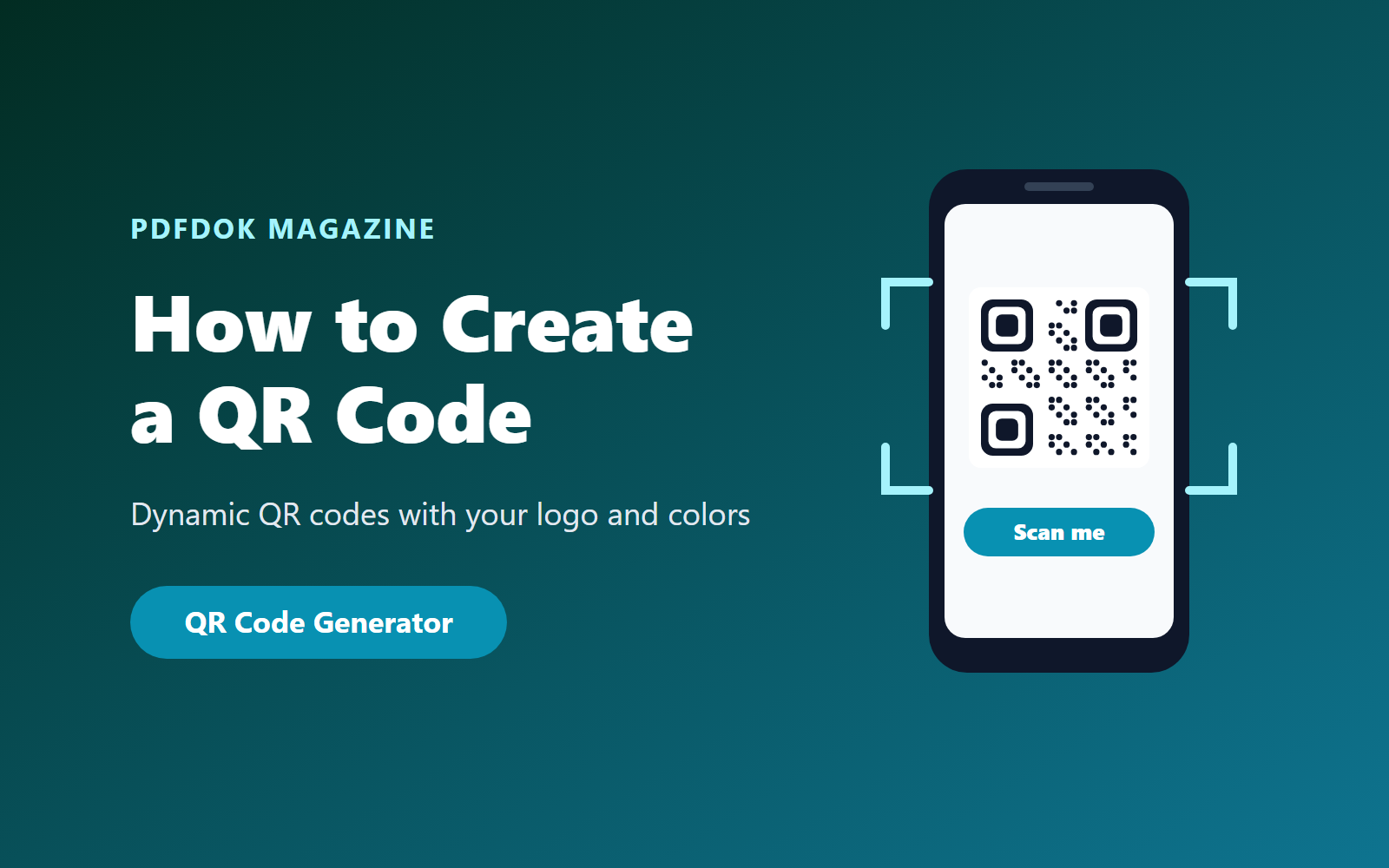
QR codes are everywhere: on restaurant menus, business cards, product packaging, posters, event tickets and shop windows. One quick scan takes people to a website, connects them to Wi-Fi or opens a WhatsApp chat, with no typing needed.
This tutorial shows you how to create a QR code with the PDFDOK QR Code Generator, step by step: choosing the right QR type, filling in the content, designing it with your colors and logo, downloading it, and updating it later without reprinting.
Static vs. Dynamic QR Codes: What's the Difference?
Before you start, it helps to understand the two kinds of QR codes:
- Static QR codes store the content directly inside the pattern. Once printed, the destination can never change; if your URL changes, you have to print a new code.
- Dynamic QR codes point to a short link that redirects to your content. You can change the destination at any time, and the printed code keeps working.
PDFDOK creates dynamic QR codes. Every code is saved in your account, so you can edit the website, file or campaign behind it whenever you need to, without replacing printed menus, cards, flyers or labels.
Step 1: Choose Your QR Code Type
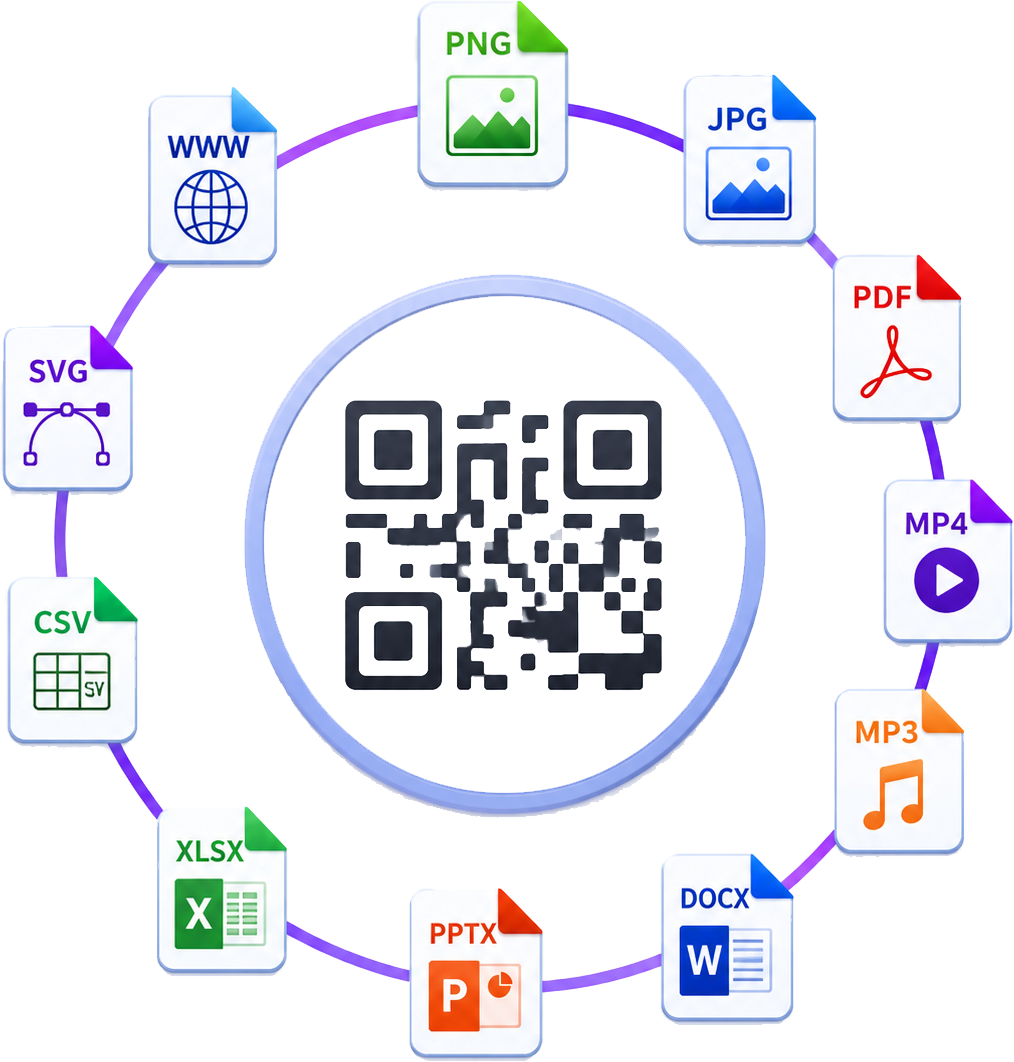
Open the QR Code Generator and pick what the code should do. There are 11 types:
| QR type | What happens when someone scans it | Great for |
|---|---|---|
| Link | Opens a website or landing page | Menus, product pages, ads, posters |
| Text | Shows a short text message | Instructions, notes, codes |
| Opens a new email with address, subject and message filled in | Support requests, feedback | |
| Call | Starts a phone call to your number | Business cards, service vans |
| Opens a WhatsApp chat, optionally with a prefilled message | Bookings, customer service | |
| Wi-Fi | Connects the phone to your wireless network | Cafés, offices, rentals, events |
| Opens a PDF document you upload | Menus, brochures, manuals, price lists | |
| Images | Shows an image you upload | Product photos, maps, flyers |
| App | Opens your app's download page | App promotion |
| Video | Opens a video link | Tutorials, product demos |
| Social media | Opens your social profile | Growing followers from print |
Step 2: Fill In the Content
Each type asks only for what it needs. You can also give the code a QR title (for example "Summer menu 2026") so it's easy to find later in your dashboard.
Link, Video, App and Social media
Enter the full web address, starting with https://. Tip: use a dedicated landing page or a URL with campaign parameters so you can measure visits from printed material in your analytics tool.
Text
Type the message that should appear after scanning (up to 4,000 characters). Keep it short: long texts are hard to read on a phone.
Enter the email address, and optionally a subject and message. When scanned, the phone opens a new email ready to send.
Call and WhatsApp
Choose the country calling code from the searchable list and enter the phone number. For WhatsApp you can add a message that appears in the chat, such as "Hi, I'd like to book a table".
Wi-Fi
Enter the network name (SSID), choose the security type (WPA/WPA2 or WEP) and type the password. Guests just scan the code to connect, with no more spelling out complicated passwords.
PDF and Images
Upload the file that should open after scanning: a PDF for the PDF type, or a PNG, JPG or WebP image for the Images type. This is perfect for restaurant menus and brochures. Need to prepare the file first? Turn photos into one document with Image to PDF, combine documents with Merge PDF, or make a large file load faster on mobile with Compress PDF.
Step 3: Design Your QR Code
A branded QR code looks more trustworthy and gets more scans than a plain black square. The design panel has three tabs.
Frame
Choose one of five frame styles, or none, and add a call-to-action phrase such as "Scan me", "See the menu" or "Join our Wi-Fi". You can set the frame color, the frame text size and the text color.
Shape
Customize the pattern itself:
- Dot shape: 16 styles, from classic squares to dots, circles, diamonds, stars and hearts
- Marker border: 15 styles for the three large corner squares
- Marker center: 15 styles for the inner part of the corner markers
- Colors: shape color, marker border and center colors, and background color
Logo
Upload your logo (PNG, JPG or WebP, up to 3 MB) to place it in the middle of the code. Square logos with a simple shape work best.
The live preview updates as you change the design, so you can see the result immediately.
Step 4: Create and Download Your QR Code
Click Create QR Code. Depending on your plan, you may be asked to sign in or choose a plan first. Your code is then saved in your account and you can download it in three formats:
- PNG with a transparent background, ideal for websites, presentations and design tools
- JPG for quick sharing and documents
- PDF for professional printing
Step 5: Edit Your QR Code Anytime
All your codes are listed in My QR codes in your account. From there you can:
- Change the destination: point the same printed code to a new page, menu or file
- Download it again in PNG, JPG or PDF
- Keep campaigns organized using clear QR titles
- Remove codes you no longer need
This is the real advantage of dynamic QR codes: when your menu, price list or campaign changes, you update it online and every printed code shows the new content right away. If you print 500 flyers, that's 500 pieces you don't need to reprint.
Tips for QR Codes That Scan Every Time
- Keep strong contrast. Use a dark pattern on a light background. Light codes on dark backgrounds and low-contrast color pairs are harder to scan.
- Don't print it too small. Around 2 × 2 cm (0.8 × 0.8 in) is a practical minimum for close-up scanning, such as on a business card. Go much larger for posters that people scan from a distance.
- Leave space around it. Keep a clear margin (the "quiet zone") between the code and other graphics.
- Add a call to action. A frame phrase like "Scan for the menu" tells people why they should scan.
- Test before printing. Scan the code with a few different phones, in the actual size and material you'll print.
- Use a mobile-friendly destination. Most scans happen on phones, so make sure the page or PDF is easy to read on small screens.
Popular Ways to Use QR Codes
- Restaurants and cafés: a PDF menu QR on every table plus a Wi-Fi QR for guests
- Business cards: a Call or WhatsApp QR, or a link to your portfolio
- Retail and packaging: product manuals, videos and reorder links
- Events: schedules, maps and registration pages
- Real estate: brochures and photo galleries on "for sale" signs
- Marketing: social media profiles and campaign landing pages on flyers and posters
Want to learn more about the technology? QR codes were invented by DENSO WAVE in 1994 and are defined by the international standard ISO/IEC 18004.
Frequently Asked Questions
How do I create a QR code for free?
Open the PDFDOK QR Code Generator, choose a QR type, fill in the content and customize the design. Depending on your plan, you may need to sign in or choose a plan before the code is created.
Can I change a QR code after printing it?
Yes. PDFDOK QR codes are dynamic, so you can change the destination from My QR codes and the printed code keeps working.
Can I add my logo to a QR code?
Yes. Open the Logo tab in the design panel and upload a PNG, JPG or WebP file up to 3 MB.
Which file formats can I download?
You can download your QR code as a transparent PNG, a JPG or a PDF.
How do I make a QR code for my Wi-Fi?
Choose the Wi-Fi type, enter your network name, select WPA/WPA2 or WEP and type the password. Guests scan the code to connect.
Can a QR code open a PDF?
Yes. Choose the PDF type and upload your document. It's a popular choice for menus, brochures and manuals.
Why won't my QR code scan?
The most common causes are low contrast, a code printed too small, a missing margin around it, or a logo that covers too much of the pattern. Increase the size, use darker colors on a light background and test again.
Create Your QR Code Now
In a few minutes you can have a branded QR code that connects people to your website, menu, Wi-Fi or WhatsApp, and that you can update anytime without reprinting.