
Oct. 1, 2026
How to Split a PDF: Extract Pages or Separate a PDF into Files
Learn how to split a PDF online, extract specific pages and break large documents into smaller, easier-to-share files.
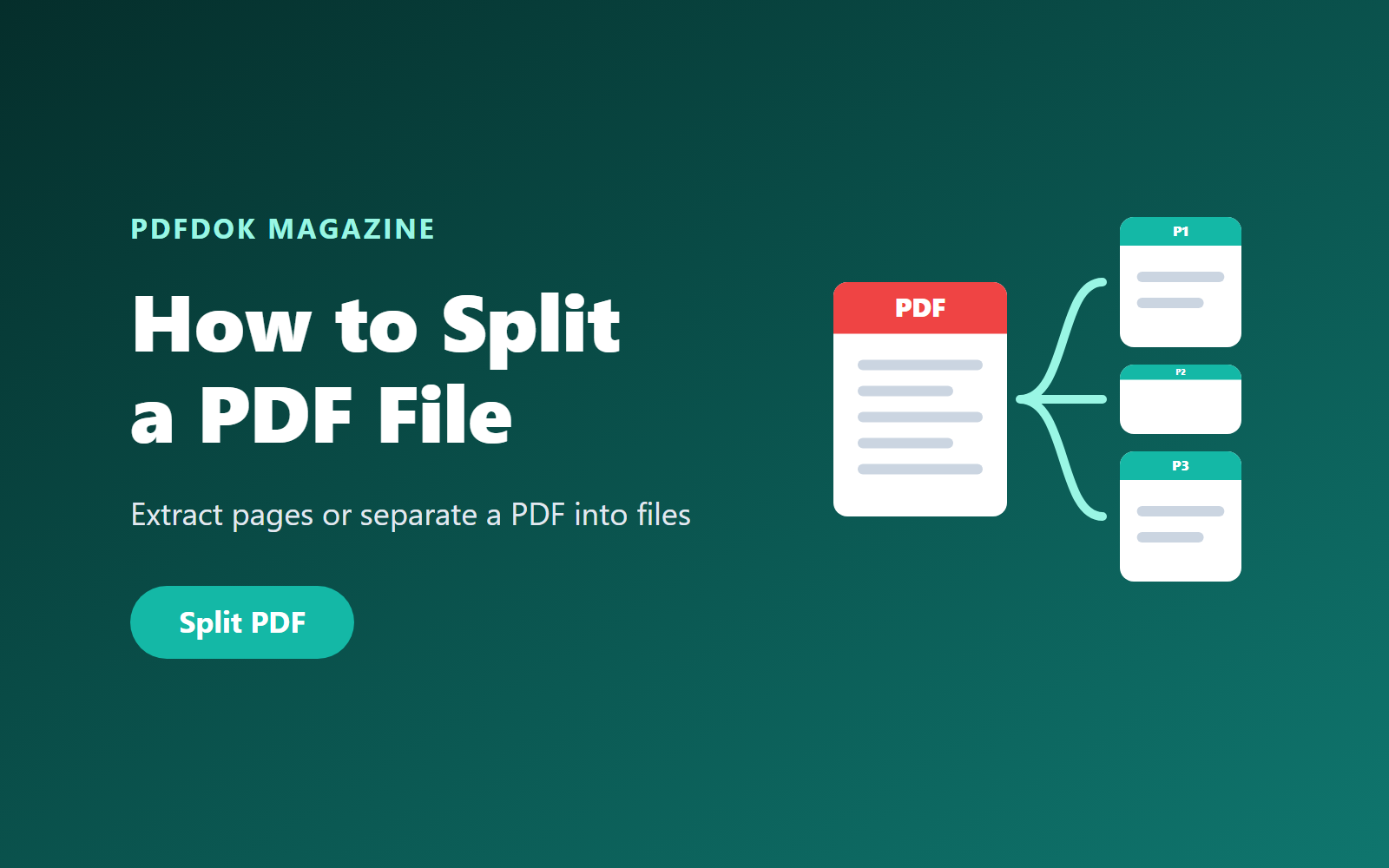
A long PDF is not always the most practical format. Maybe you only need to send one chapter of a report, a single page of a contract, or the invoice pages from a large statement. Instead of sharing the whole document, you can split the PDF and keep only the pages you need.
In this guide you'll learn how to split a PDF online, how to extract specific pages, and how to combine splitting with other PDF tools to get exactly the document you want.
With PDFDOK's Split PDF tool, you can do it directly in your browser, with no software to install.
What Does It Mean to Split a PDF?
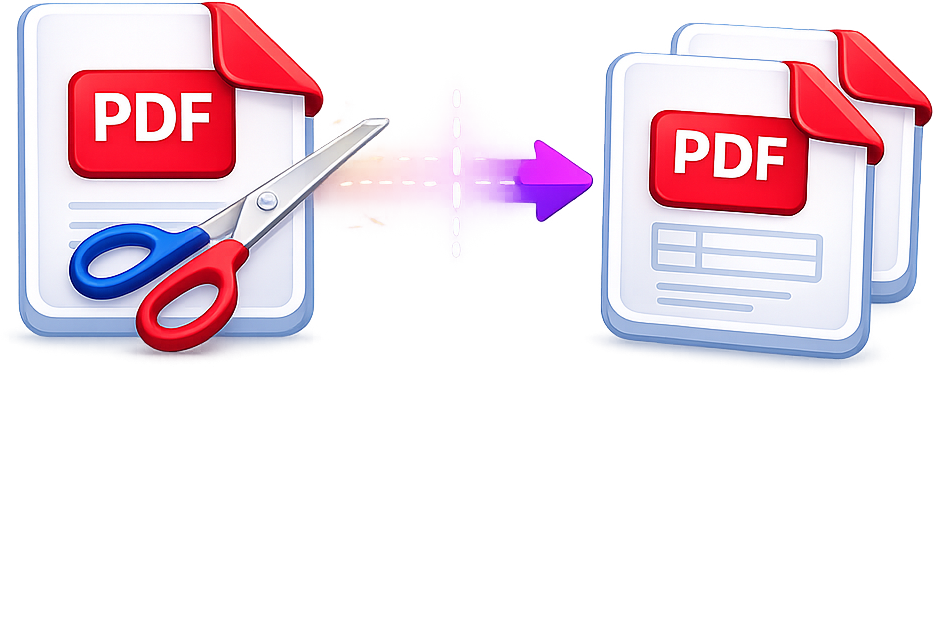
Splitting a PDF means separating one document into smaller parts. Depending on what you need, you can:
- Extract selected pages, for example pages 3 to 5, into a new PDF
- Separate page ranges into several independent files
- Remove unnecessary pages by keeping only the ones that matter
The original file stays unchanged; you download new PDF files that contain only the selected pages.
When Is Splitting a PDF Useful?
- Sending only the relevant pages of a contract or report
- Extracting one chapter of an e-book or study material
- Separating scanned documents that were saved as one file
- Uploading documents to portals that limit file size or page count
- Splitting monthly statements into individual invoices
- Sharing a single form page instead of a complete application pack
How to Split a PDF Online with PDFDOK
1. Open the Split PDF tool
Go to the PDFDOK Split PDF page on your computer, tablet or phone.
2. Upload your PDF
Choose the document you want to split. The tool accepts one PDF at a time, up to 200 MB.
3. Select pages or ranges
Pick the individual pages or page ranges you want to keep, for example 1-3 and 8-10.
4. Split the file
Start the split and PDFDOK will create the new documents from your selection.
5. Download the result
Your split pages are delivered together in a ZIP archive, so you can download every file in one step.
How to Extract a Single Page from a PDF
Need just one page, such as a signed page of a contract or a certificate? Upload the PDF to Split PDF, select only that page number, and download it as its own PDF. It's the quickest way to share one page without sending the full document.
Split, Merge and Compress: Working Together
Splitting is often one step in a larger workflow:
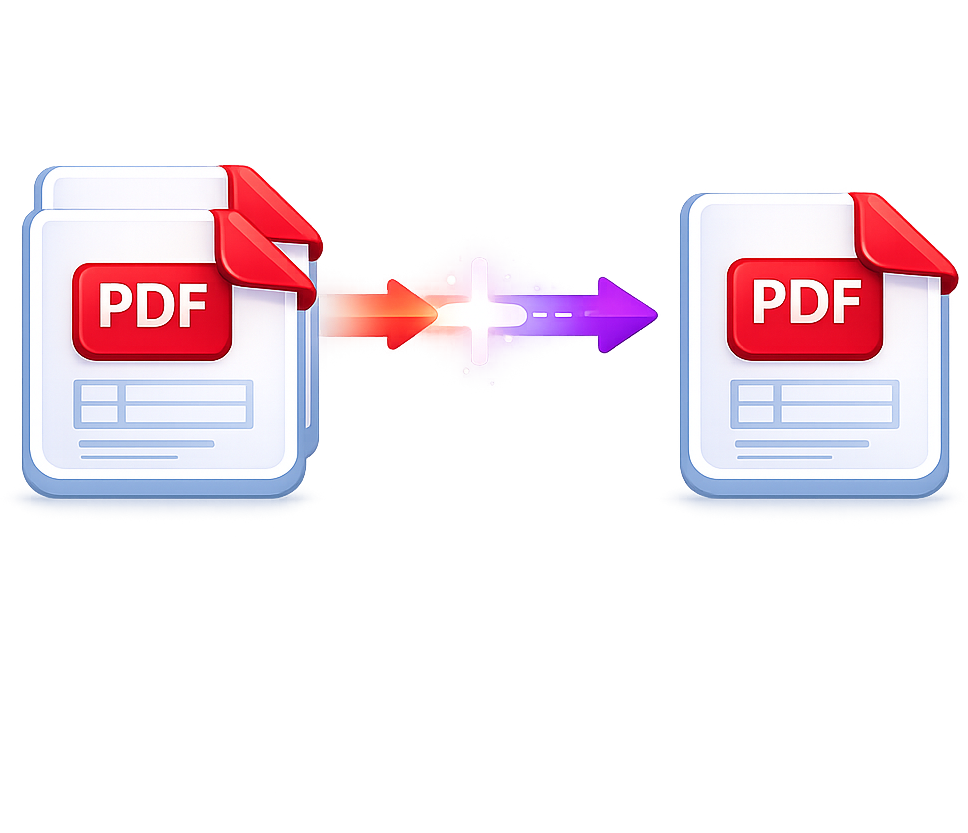
- Split, then merge: extract the pages you need from several documents and combine them with Merge PDF. Our guide on how to merge PDF files explains the details.
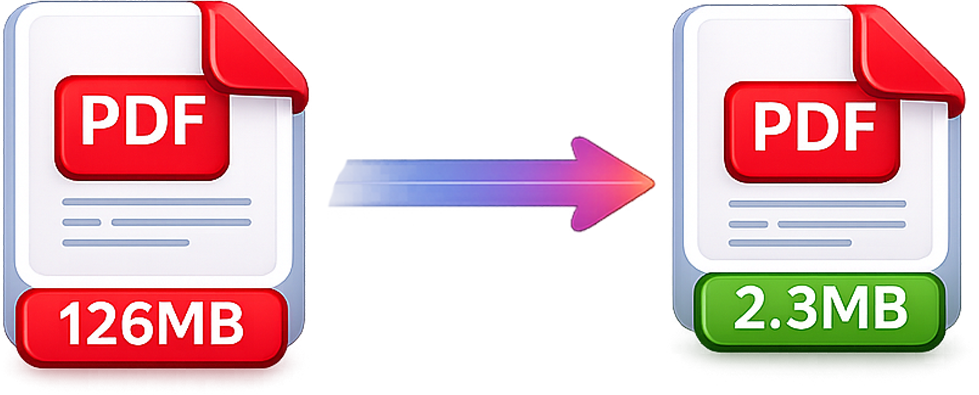
- Split, then compress: if a section is still too large to email, reduce it with Compress PDF. See how to compress a PDF.
- Split, then convert: turn selected pages into images with PDF to JPG or PDF to PNG, or into an editable document with PDF to Word.
Tips for Splitting PDFs
- Check page numbers first. The page number printed on the document may differ from the PDF's actual page position, especially when there is a cover or table of contents.
- Name your files clearly after downloading, for example contract-signature-page.pdf.
- Unlock protected files first. If the PDF requires a password, open it with Unlock PDF (you need to know the password) before splitting.
Can You Split a PDF Without Adobe Acrobat?
Yes. Desktop tools such as Adobe Acrobat can split documents, but an online tool works on any device without installation. Because PDF is an open standard (ISO 32000), the split files open in any PDF reader.
Frequently Asked Questions
How do I split a PDF into separate pages?
Upload the document to PDFDOK's Split PDF tool, select the pages or ranges you want, start the split and download the ZIP file with your new PDFs.
Does splitting a PDF change the original file?
No. Splitting creates new files. Your original PDF stays exactly as it was.
What is the maximum file size?
You can split one PDF at a time, up to 200 MB.
Does splitting reduce quality?
No. The selected pages are copied into new documents without changing their text or images.
Can I split a PDF on my phone?
Yes. PDFDOK works in mobile browsers on iPhone and Android.
Split Your PDF Online
Whether you need one page, one chapter or several smaller documents, splitting a PDF helps you share only what matters. Upload your file, choose your pages and download the result in seconds.