
Oct. 1, 2026
How to Compress a PDF: Reduce PDF File Size Without Losing Quality
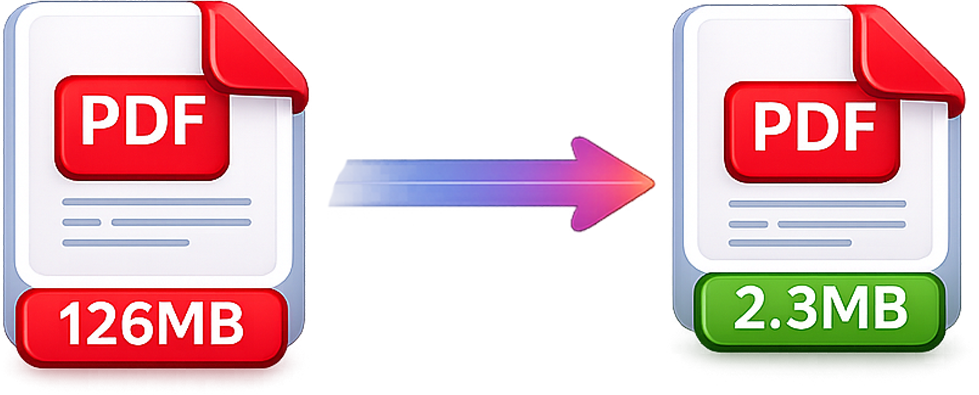
Learn how to compress a PDF online and make large files small enough to email, upload or store — without installing software.
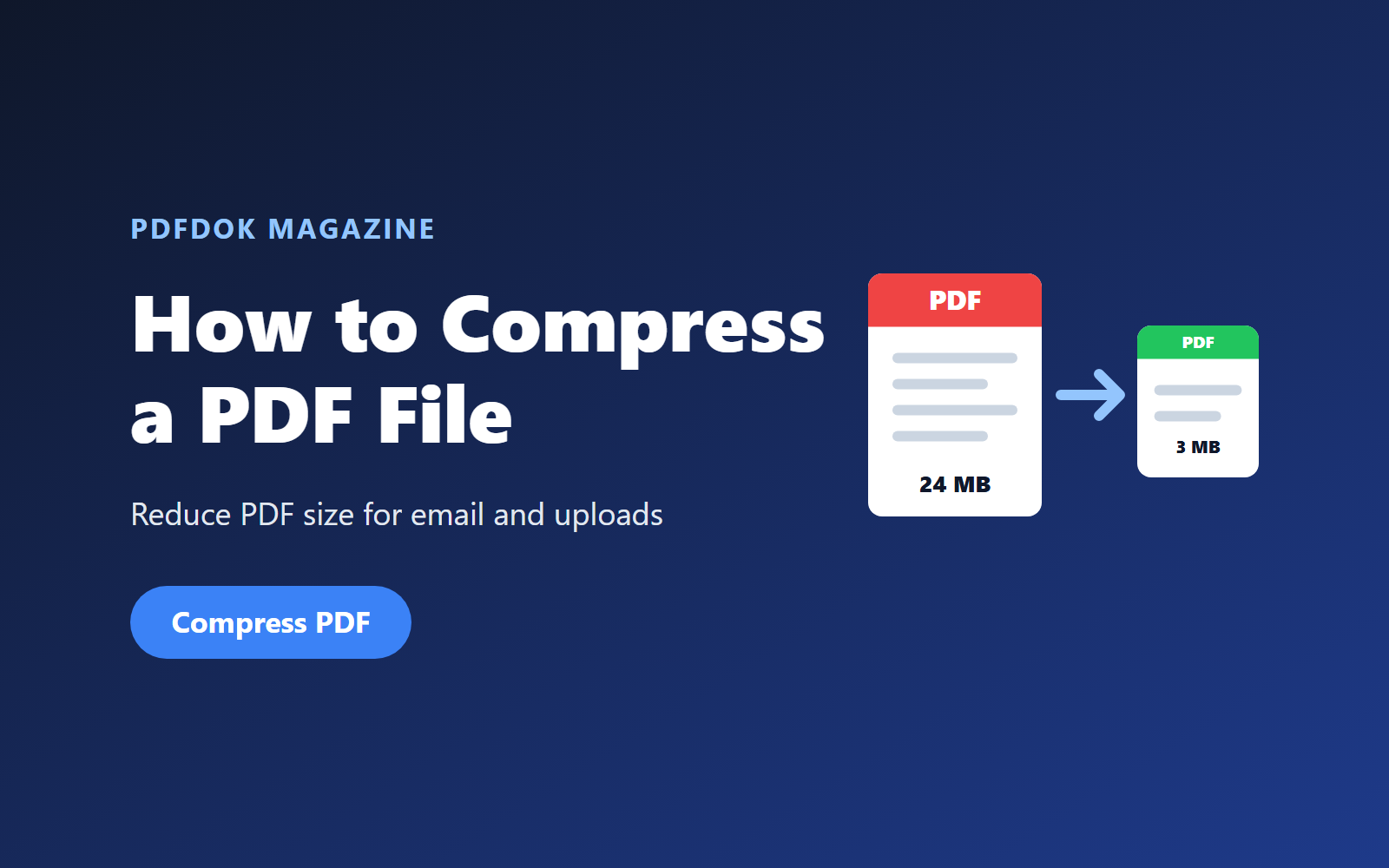
Large PDF files are a common problem. An email bounces because the attachment is too big, an online application rejects your upload, or a shared folder fills up faster than expected. The solution is usually simple: compress the PDF.
In this guide you'll learn how to compress a PDF online, why some PDFs are so large, which compression level to choose, and how to keep your document readable while making the file much smaller.
With PDFDOK's Compress PDF tool, you can reduce PDF size directly in your browser — no software installation required.
Why Are Some PDF Files So Large?
A PDF's size depends mostly on what it contains. The most common causes of large PDF files are:
- High-resolution images and photos — scans and smartphone photos often contain far more detail than a screen or printer needs.
- Scanned documents — every page of a scan is stored as an image, not as text.
- Embedded fonts — documents that embed many complete font files grow quickly.
- Unoptimized exports — some applications save PDFs with duplicate resources or extra data.
- PDFs created from images — if you converted images to PDF, the final size depends on the original image resolution.
Text-only PDFs are usually small already. Image-heavy PDFs are where compression makes the biggest difference.
When Should You Compress a PDF?
Compressing a PDF is useful when you need to:
- Send a PDF as an email attachment (for example, Gmail limits attachments to 25 MB)
- Upload documents to job portals, government websites or university applications with size limits
- Share files faster over mobile connections
- Save storage space in cloud drives and archives
- Speed up page loading when PDFs are published on a website
How to Compress a PDF Online with PDFDOK
Reducing the size of a PDF takes only a few steps:
1. Open the Compress PDF tool
Go to the PDFDOK Compress PDF page in any modern browser, on desktop or mobile.
2. Upload your PDF
Select the PDF you want to make smaller. The tool accepts PDF files up to 200 MB.
3. Choose a compression level
Pick the level that fits your goal. Stronger compression creates a smaller file; lighter compression keeps more image detail. See the section below for advice on choosing.
4. Compress the file
Start the compression and PDFDOK will optimize the images and internal structure of your document.
5. Download your smaller PDF
Download the compressed PDF, check that it looks right, and it's ready to email, upload or archive.
Which Compression Level Should You Choose?
There is always a trade-off between file size and visual quality. Use this as a quick guide:
| Goal | Recommended level | Why |
|---|---|---|
| Email or online form with strict limit | Strong | Smallest possible file, fine for on-screen reading |
| Everyday sharing | Balanced | Good quality with a noticeable size reduction |
| Printing or detailed images | Light | Keeps more detail in photos and graphics |
Results depend on the original file: image-heavy PDFs often shrink a lot, while a PDF that's already optimized may change very little.
Does Compressing a PDF Reduce Quality?
Compression mainly works by reducing image resolution and re-encoding images more efficiently. Text and vector graphics normally stay sharp, because they are not stored as pixels.
Photos and scanned pages may lose some fine detail at stronger levels, but for reading on screen the difference is often hard to notice. If you plan to print the document, choose a lighter compression level.
Tip: always keep a copy of your original file in case you need the full-quality version later.
How to Compress a PDF for Email
Most email providers limit attachment size — Outlook and Gmail both cap attachments at around 20–25 MB, and many company mail servers use even lower limits. To send a large PDF by email:
- Open the Compress PDF tool.
- Upload the PDF and choose strong or balanced compression.
- Download the result and check the new file size.
- Still too big? Use Split PDF to send the document in several parts.
Other Ways to Make a PDF Smaller
- Remove unnecessary pages — use Split PDF to extract only the pages you need (see how to split a PDF).
- Resize images before conversion — when converting images to PDF, very large photos produce very large PDFs.
- Convert HEIC photos carefully — iPhone photos are high resolution; compress after using HEIC to PDF.
- Compress after merging — if you merge several PDFs into one, compress the final document once at the end.
Is It Safe to Compress PDFs Online?
PDFDOK processes your files over an encrypted connection and is built for private document workflows. You can read more in our privacy policy. For confidential documents, you can also add a password after compression with Protect PDF. Learn more in our guide on how to password protect a PDF.
For general guidance on handling sensitive files, the PDF Association publishes background on the PDF standard (ISO 32000) and its security features.
Frequently Asked Questions
How can I compress a PDF for free?
Upload your file to PDFDOK's Compress PDF tool, choose a compression level and download the smaller file. No installation is needed.
How much smaller will my PDF get?
It depends on the content. PDFs with many photos or scans can shrink significantly, while text-only or already optimized PDFs may change only slightly.
What is the maximum file size I can compress?
The Compress PDF tool accepts one PDF per run, up to 200 MB.
Will the text in my PDF become blurry?
No. Real text and vector graphics stay sharp. Only images inside the PDF are optimized.
Can I compress a PDF on my phone?
Yes. PDFDOK works in mobile browsers on iPhone and Android, so you can compress a PDF without an app.
Can I compress a password-protected PDF?
Remove the password first with Unlock PDF (you need to know the password), compress the file, then protect it again with Protect PDF.
Compress Your PDF Online
Whether you need to email a report, upload an application or free up storage, compressing your PDF is the fastest way to make it easier to share. Choose a compression level, upload your file and download a smaller PDF in seconds.