
Oct. 1, 2026
How to Merge PDF Files: Combine Multiple PDFs into One
Learn how to combine several PDF files into one organized document online — reorder pages, remove extras and download a single PDF.
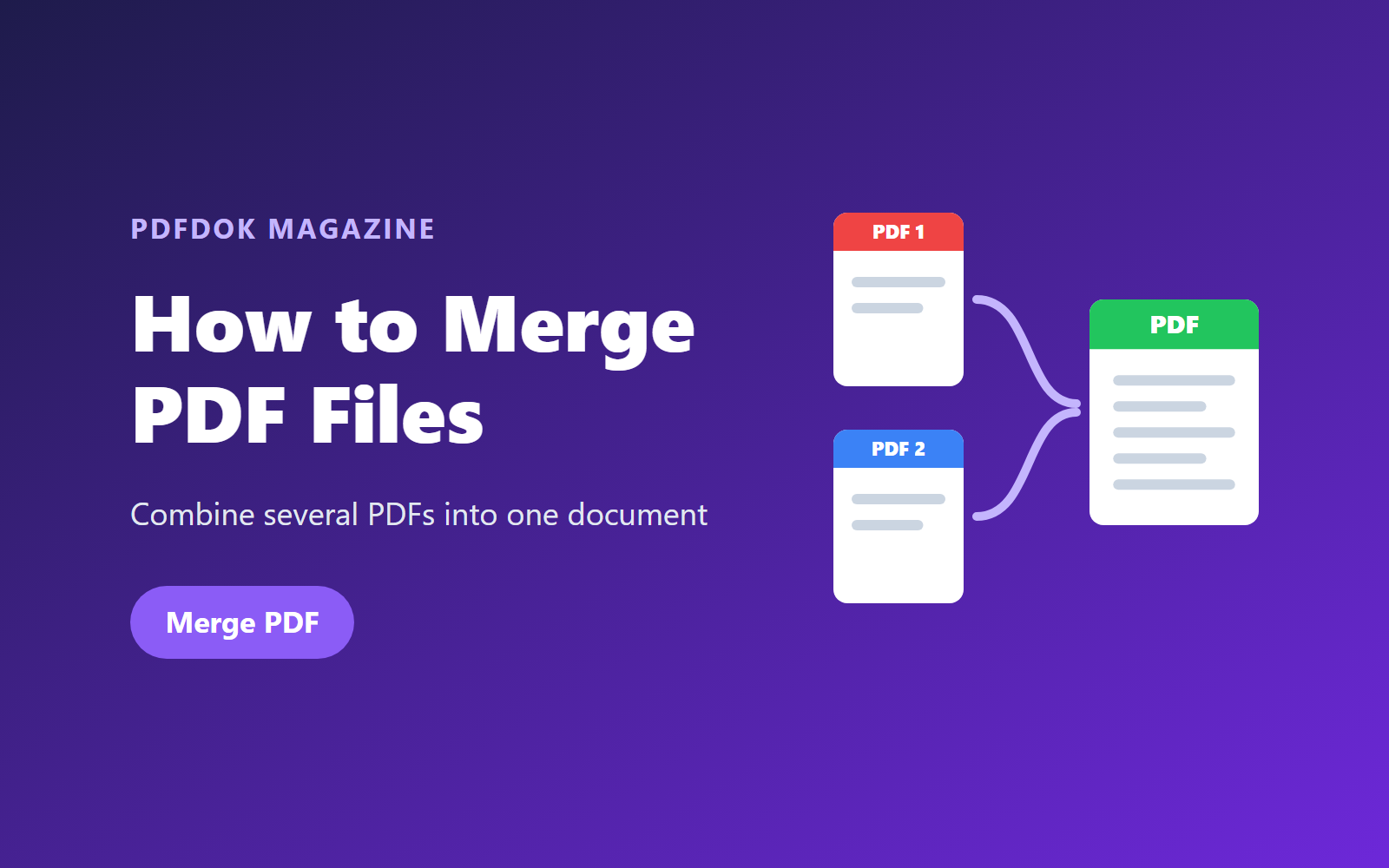
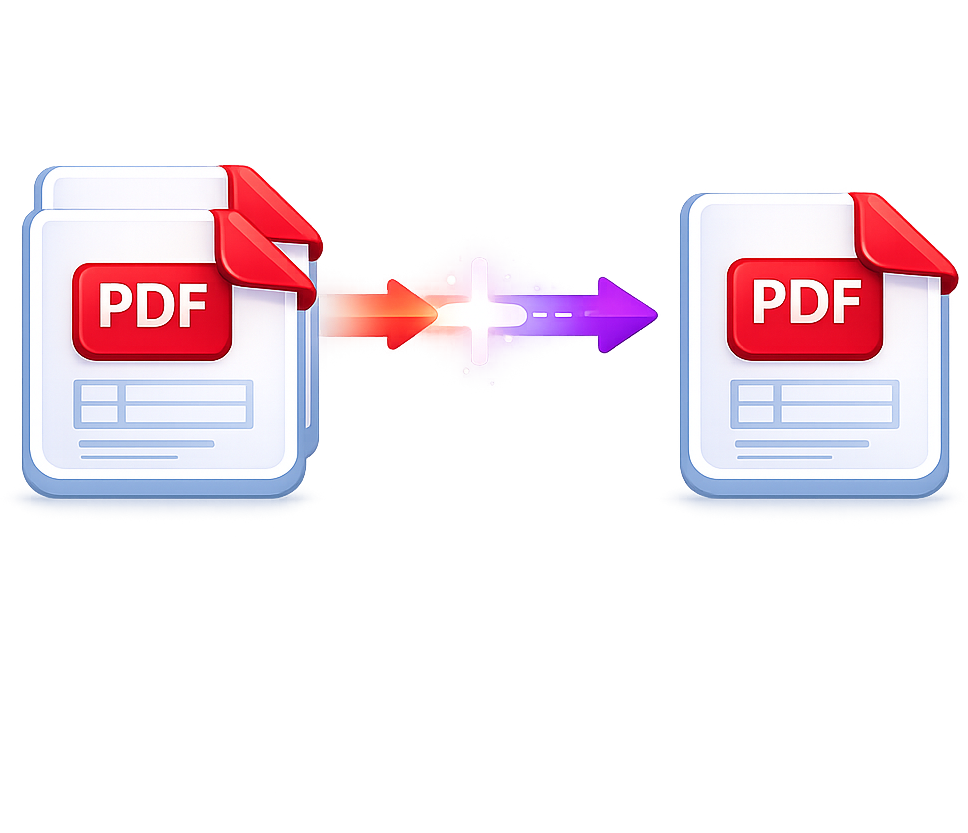
Invoices, contracts, scanned pages, certificates, reports — documents often arrive as separate PDF files. When you need to send them together, submit an application or keep a tidy archive, the best solution is to merge the PDFs into one file.
In this guide you'll learn how to merge PDF files online, how to arrange pages in the right order, and what to do with your combined document afterwards.
With PDFDOK's Merge PDF tool, you can combine PDFs directly in your browser without installing any software.
Why Merge PDF Files?
Combining PDFs into a single document makes it easier to:
- Send several documents as one email attachment
- Submit job, visa or university applications that accept only one file
- Group monthly invoices or receipts for accounting
- Assemble reports from chapters created by different people
- Combine scanned pages into a complete document
- Keep related files together in a clean, searchable archive
A single PDF keeps the page order fixed, so the recipient reads everything exactly as you intended.
How to Merge PDF Files Online with PDFDOK
1. Open the Merge PDF tool
Go to the PDFDOK Merge PDF page on your computer, tablet or phone.
2. Upload your PDF files
Select all the PDFs you want to combine. You can upload up to 20 files at once, with a maximum of 100 MB per file.
3. Arrange the pages
Use the preview to drag files and pages into the correct order. You can also remove pages you don't need — for example blank pages or duplicate cover sheets.
4. Merge the files
Start the merge and PDFDOK will combine everything into a single PDF document.
5. Download your merged PDF
Download the final file and it's ready to share, print, upload or archive.
How to Combine PDFs with Other File Types
Do you have a mix of Word documents, spreadsheets and images? Convert them to PDF first, then merge:
- Word documents → Word to PDF
- Excel spreadsheets → Excel to PDF
- PowerPoint presentations → PPTX to PDF
- Photos and scans (JPG, PNG, WebP) → Image to PDF
- iPhone photos → HEIC to PDF
Once every file is a PDF, upload them all to Merge PDF and combine them into one document. Read our guide on how to convert images to PDF for more details on the image step.
Tips for a Clean, Professional Merged PDF
- Plan the order first. Put a cover page or summary at the beginning, followed by the supporting documents.
- Rename files with numbers (01-cover.pdf, 02-invoice.pdf…) so they upload in the right order.
- Remove blank or duplicate pages in the preview before merging.
- Check page orientation — landscape and portrait pages can live in the same PDF, but make sure scans aren't upside down.
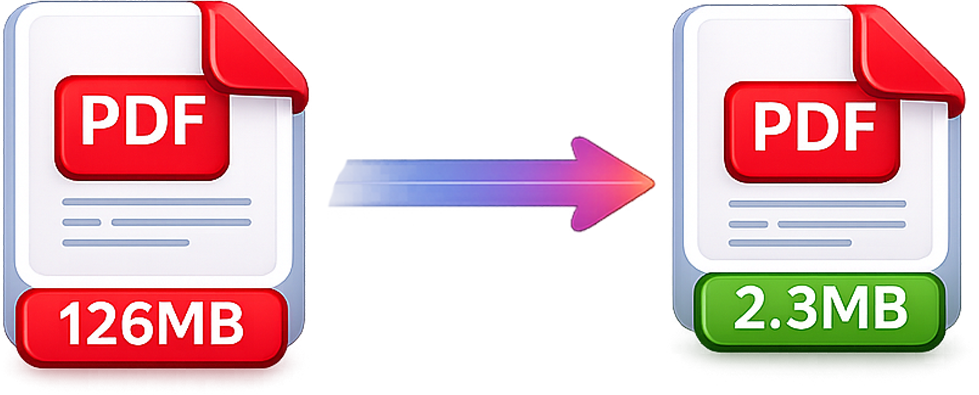
- Compress at the end. If the merged file is too large to email, run it through Compress PDF. See our guide on how to compress a PDF.
Merge PDF vs. Split PDF
These two tools do the opposite job:
- Merge PDF combines several PDF files into one document.
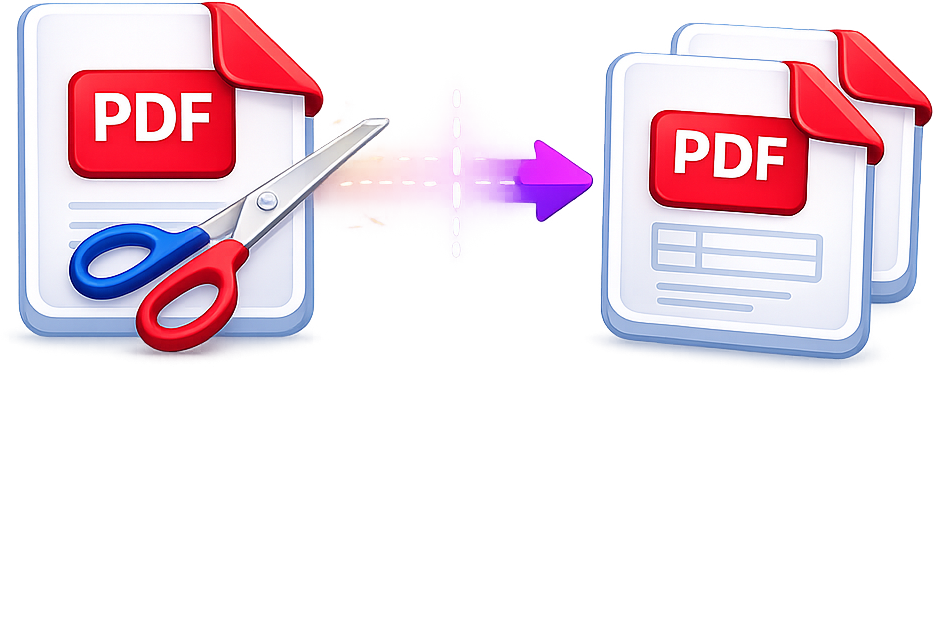
- Split PDF separates one PDF into several smaller files or extracts selected pages.
They work well together: split a large document to extract the pages you need, then merge those pages with other files to create a new PDF. Read our guide on how to split a PDF.
Can You Merge PDFs Without Adobe Acrobat?
Yes. Desktop software such as Adobe Acrobat can combine files, and on a Mac you can also use Preview. But an online tool is often faster: there is nothing to install, it works on any operating system, and you can merge PDFs from your phone.
Because PDF is an open standard (ISO 32000), a merged PDF from PDFDOK opens in any PDF reader, browser or mobile device.
What Can You Do After Merging PDFs?
- Edit or sign the combined document in the PDF Editor
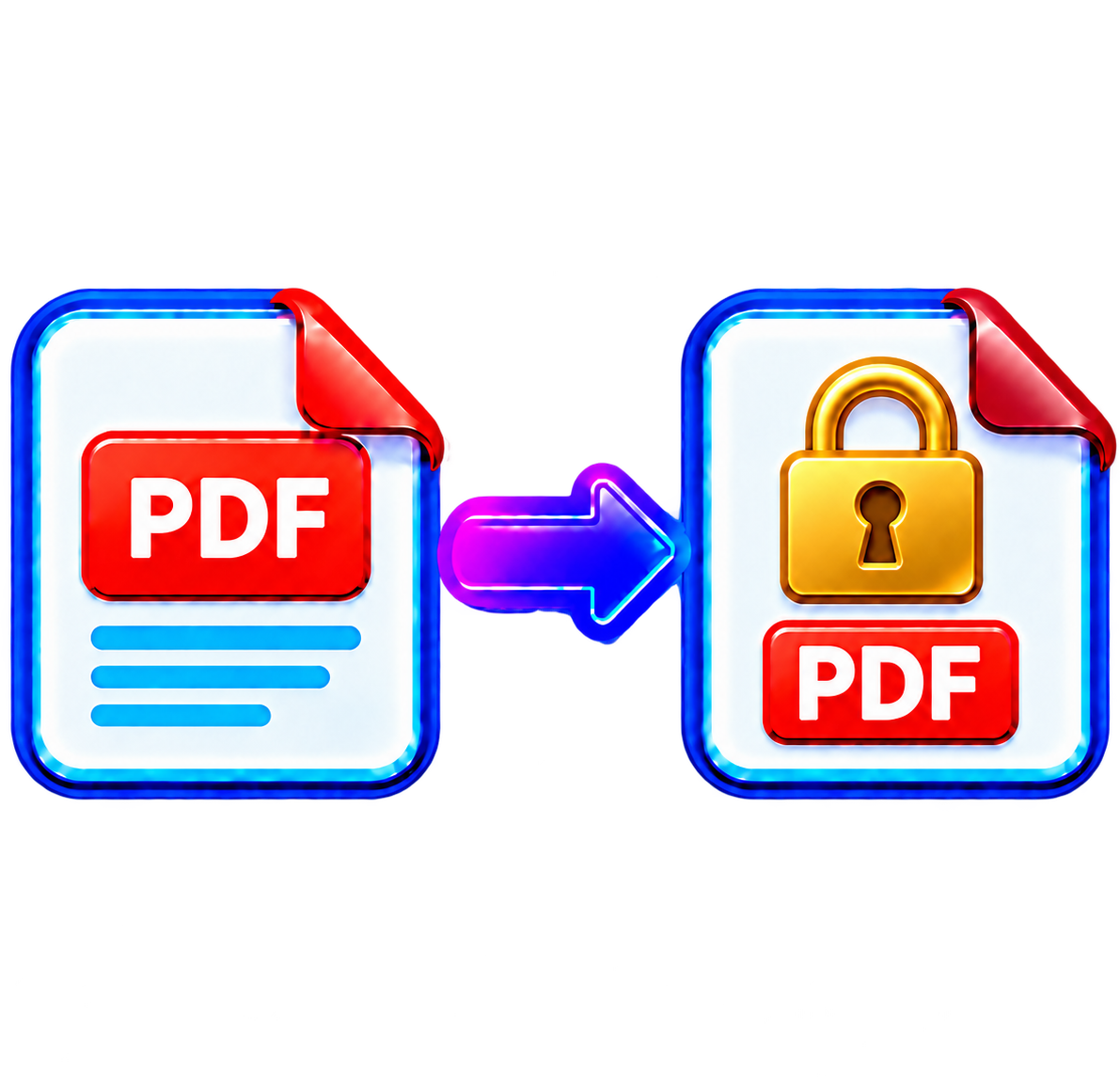
- Protect it with a password using Protect PDF (read the guide)
- Reduce the size with Compress PDF
- Convert it to Word for further editing with PDF to Word (read the guide)
- Create a long-term archive copy with PDF to PDF/A
Frequently Asked Questions
How do I merge PDF files into one?
Open PDFDOK's Merge PDF tool, upload your PDFs, arrange them in the right order and click merge. Then download your single combined PDF.
How many PDFs can I merge at once?
You can combine up to 20 PDF files in one merge, each up to 100 MB.
Can I change the page order before merging?
Yes. The preview lets you reorder files and pages and remove pages you don't need.
Does merging PDFs reduce quality?
No. Merging copies the pages into a new document without re-encoding them, so text and images keep their original quality.
Can I merge PDFs on my phone?
Yes. PDFDOK works in mobile browsers on iPhone and Android — no app needed.
Can I merge Word files and images with PDFs?
Convert them to PDF first with Word to PDF or Image to PDF, then merge all the PDFs together.
Combine Your PDF Files Online
Whether you're preparing an application, organizing invoices or assembling a report, merging PDFs keeps everything in one place and in the right order. Upload your files, arrange the pages and download a single, tidy PDF in seconds.