
Oct. 1, 2026
How to Password Protect a PDF: Encrypt Your Documents Online
Learn how to add a password to a PDF online, choose a strong password and share protected documents safely.
Contracts, invoices, medical records, payslips and ID scans often travel as PDF files. If one of these documents is forwarded to the wrong person or stored in the wrong folder, anyone can open it. The simple solution is to password protect the PDF.
In this guide you'll learn how to add a password to a PDF online, how to choose a strong password and how to share protected files safely.
With PDFDOK's Protect PDF tool, you can encrypt a document directly in your browser.
What Does Password Protecting a PDF Do?
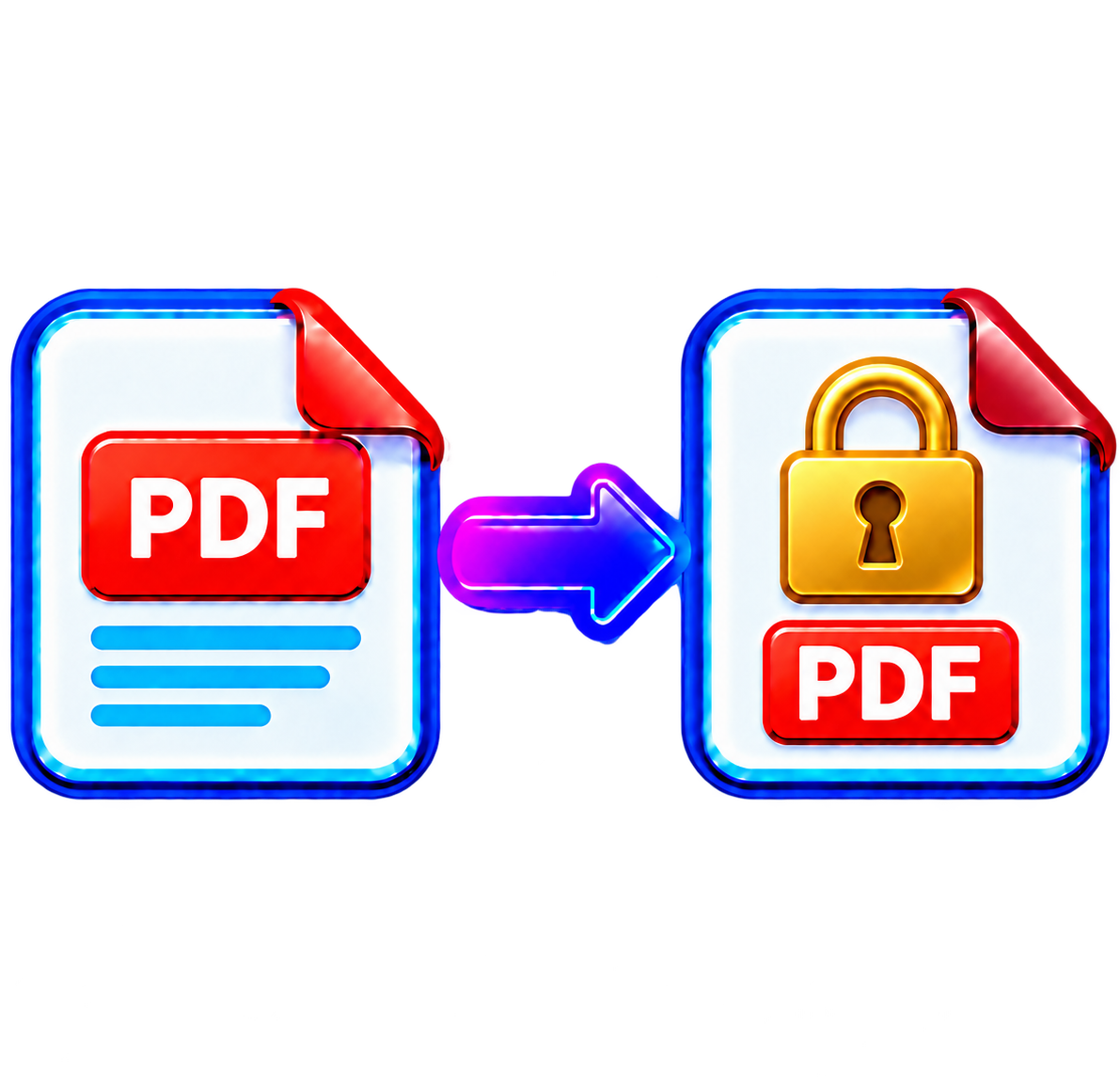
When you protect a PDF with a password, the file is encrypted. Anyone who tries to open it must enter the password first. Without it, the content cannot be read.
PDF encryption is part of the official PDF standard (ISO 32000), so protected files work in all common PDF readers, including Adobe Acrobat Reader, browsers and mobile apps.
When Should You Protect a PDF?
- Sending contracts, offers or legal documents
- Sharing invoices, bank statements or payslips
- Emailing scans of passports, ID cards or certificates
- Storing confidential reports in shared drives
- Sending medical or HR documents
How to Password Protect a PDF with PDFDOK
1. Open the Protect PDF tool
Go to the PDFDOK Protect PDF page.
2. Upload your PDF
Select the document you want to secure. The tool accepts one PDF at a time, up to 200 MB.
3. Enter a strong password
Type the password that will be required to open the document. See the tips below for choosing a good one.
4. Protect the file
Start the process and PDFDOK will encrypt your document.
5. Download the protected PDF
Download the file and test it once: it should ask for the password before opening.
How to Choose a Strong Password
- Make it long. A passphrase of several unrelated words is stronger and easier to remember than a short, complex word.
- Make it unique. Never reuse a password from your email or bank account.
- Avoid personal details such as names, birthdays or company names.
- Use a password manager to generate and store it.
For more guidance, see the UK National Cyber Security Centre's advice on strong passwords.
How to Share a Protected PDF Safely
Encryption only helps if the password stays private. Follow two simple rules:
- Send the password through a different channel. If you email the PDF, share the password by phone, SMS or a messaging app.
- Keep a safe copy of the password. If you forget it, the document cannot be opened, and there is no password-recovery service.
Protect, Compress or Merge First?
Protection should usually be the last step. Prepare your document first, then encrypt it:
- Combine several files with Merge PDF (read the guide)
- Remove pages you don't want to share with Split PDF (read the guide)
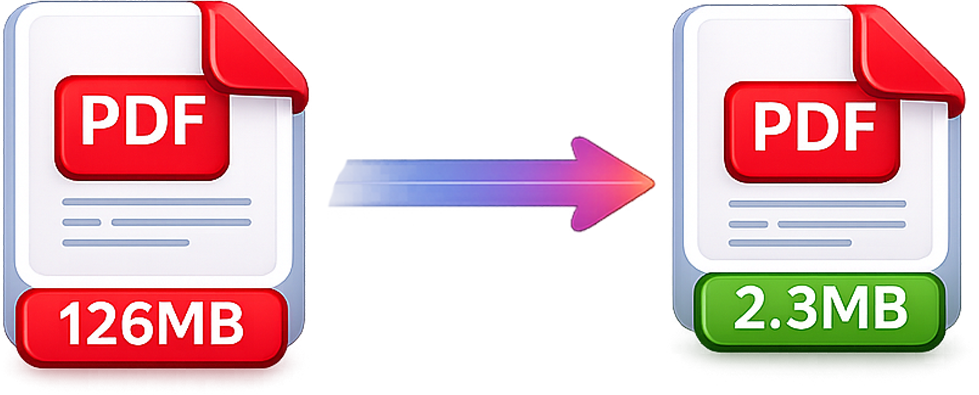
- Reduce the size with Compress PDF (read the guide)
- Finally, add the password with Protect PDF
How to Remove a Password from a PDF
If you need to edit or merge a protected file later and you know the password, remove the protection with Unlock PDF. This tool does not recover unknown passwords or open documents you aren't authorized to access.
Frequently Asked Questions
How do I put a password on a PDF for free?
Upload the file to PDFDOK's Protect PDF tool, enter a password, and download the encrypted document.
Will the recipient need special software?
No. Any standard PDF reader, browser or mobile app will ask for the password and then open the file normally.
What happens if I forget the password?
The document cannot be opened without it, so keep a safe copy, ideally in a password manager.
Can I protect a PDF on my phone?
Yes. PDFDOK works in mobile browsers on iPhone and Android.
Does protecting a PDF change its content?
No. Encryption locks the document behind a password but keeps its pages, text and images exactly the same.
Protect Your PDF Online
A password takes seconds to add and keeps your confidential documents private, even if a file ends up in the wrong inbox. Upload your PDF, set a strong password and share it with confidence.